Converting PNG Emoji Graphics to JPG When Size Actually Matters
PNG emoji graphics creating white boxes in email newsletters? Here's when to convert to JPG, how to do it fast, and how to cut file size after.
You designed a gorgeous emoji art banner, exported it as a PNG, dropped it into your newsletter, and then a subscriber emailed back with a screenshot showing a blocky white rectangle where your transparent background should have been. That is one of the most common frustrations for anyone who embeds emoji graphics into email campaigns or WordPress posts. The good news is that this problem has a straightforward fix, and understanding the why makes it much easier to avoid next time.
Key Takeaway: PNG files carry a transparency layer that many email clients simply cannot render, turning your design into an ugly white box. For photos and decorative emoji graphics where transparency is not needed, converting to JPG removes that layer, shrinks the file size, and produces a result that displays consistently across Gmail, Outlook, and Apple Mail without any extra plugins or workarounds.
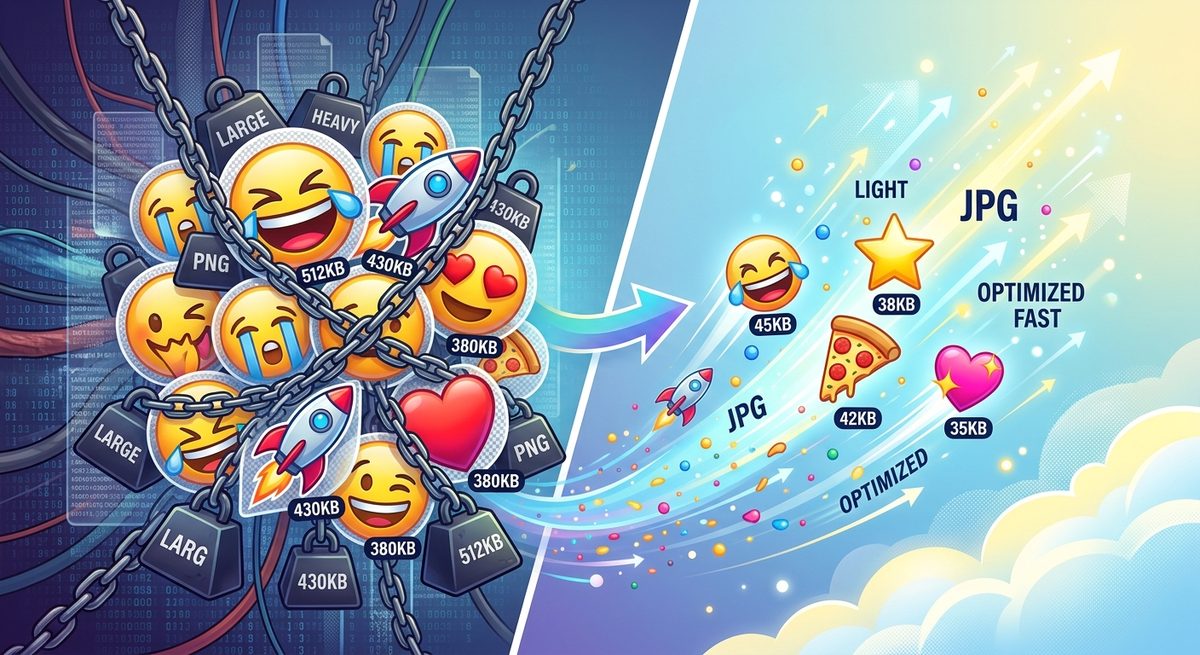
The Transparency Problem Nobody Warned You About
PNG was designed with transparency in mind. That alpha channel is exactly what makes it great for sticker-style graphics that sit over colored backgrounds in web design. But email is a different beast entirely.
Most desktop email clients, Outlook especially, handle the alpha channel in their own way, and many of them default to filling transparent areas with white. So what looked perfect in your design tool lands in a subscriber's inbox looking like it was printed on a white sticky note and slapped into the email.
The transparency in PNG format is a well-documented feature of the spec, but email rendering engines were never required to support it fully. That gap between what PNG can do and what email clients actually do is what catches so many creators off guard.
The fix is not a workaround. It is just the right tool for the job. If your emoji graphic is sitting on a solid background color and transparency is not doing any work for you, JPG is the better format for distribution.
What Actually Changes When You Convert
It helps to understand what you are giving up and what you are gaining before you run the conversion.
PNG vs JPG: Format Comparison for Emoji Graphics
Feature
PNG
JPG
Transparency support
Yes
No
Lossless compression
Yes
No
File size (photos)
Larger
Smaller
Email client compatibility
Inconsistent
Very consistent
Best for
Logos, stickers, UI assets
Photos, email graphics, web images
Editable without quality loss
Yes
No (re-saving degrades)
The key point in that table is the email client compatibility row. JPG does not support transparency, which sounds like a downside, but it means email clients have nothing to misinterpret. You get a flat image that renders identically in Outlook 2016, Gmail on Android, and Apple Mail on a MacBook.
When the File Size Gap Actually Matters
For a simple emoji icon on a blog post, the difference between a 40KB PNG and a 15KB JPG might feel trivial. But multiply that across a newsletter template with six emoji art sections, or a WordPress page with a dozen decorative graphics, and the numbers add up fast.
Page load time is tied directly to Core Web Vitals, the Google metrics that affect how your site ranks in search results. Heavier images slow the Largest Contentful Paint score, which can push your page down in rankings. Shaving file size across all your embedded graphics is not just a polish move, it is an SEO decision.
Email is even more sensitive. Many providers start clipping messages above a certain size threshold. Gmail, for example, will truncate HTML emails that exceed a specific byte count and show a "View entire message" link, which breaks your call to action placement and tanks click-through rates.
How to Run the Conversion Without Losing Quality
The actual process of converting a PNG emoji graphic to JPG is simple, but the tool you use matters more than most people realize. Browser-based converters vary wildly in how they handle color profiles and compression settings.
A clean way to do this is using a dedicated PNG to JPG converter that gives you control over output quality rather than just applying a default compression rate blindly. You want something that lets you preview the result before downloading, so you can catch any color shift that occasionally happens when moving between formats with different color profile handling.
The general workflow is:
- Open your converter tool in the browser
- Upload the PNG file directly from your device
- Set the quality level (80 to 90 percent is usually the sweet spot for graphics)
- Preview the output and check that no colors have shifted noticeably
- Download the JPG and drop it into your email template or CMS
No software installation needed. The whole process takes under a minute for a single graphic.
Upscaling Before You Convert
There is a situation where conversion alone is not enough. If you grabbed an emoji graphic from an older source, or exported it at a small pixel dimension to keep file size down originally, you might find that the JPG looks soft or pixelated when it displays at the size your email template needs.
In that case, running the image through AI tools designed for upscaling before you convert is worth the extra step. AI upscalers use neural networks trained on image data to add pixel detail in a way that looks natural rather than just blowing up the image and blurring it. The result is a crisper graphic that holds up at larger display sizes, and converting that higher-resolution output to JPG afterward gives you both quality and compatibility.
This step is optional. If your original PNG is already at 1200 pixels wide or larger, you can skip it entirely. But for small emoji art pulled from older collections, it makes a visible difference.
Why You Should Check File Weight After Converting
Converting to JPG reduces file size compared to PNG for photographic or gradient-heavy content. But it is not a guaranteed miniaturization for every graphic type. Simple flat-color emoji art with large areas of solid color can sometimes produce a JPG that is not dramatically smaller, because JPEG compression works by discarding fine detail in areas of gradual color change, and flat-color graphics do not give it much to work with.
After conversion, always check the actual file size. If the result is still heavier than you want, running it through a dedicated tool to compress image files gives you another round of reduction without going back to the original. A good compression tool will squeeze out additional bytes by optimizing the file structure itself without a visible quality hit at normal screen resolutions.
The target file size for an email graphic depends on your template, but most email designers aim to keep individual images under 100KB, with a total email image payload under 600KB.
PNG Emoji Art in the Real World: Format Fits the Job
The bigger lesson here is not that PNG is bad. It is that format choice should follow distribution channel. PNG is excellent for graphics that live on a website where browsers have consistent transparency support, or for assets you are handing off to a developer. The moment those same graphics move into an email campaign or a CMS post that needs maximum compatibility and fast load times, JPG earns its place.
Most emoji art and decorative graphics do not need transparency to do their job in email. They sit on a background color the designer controls. Removing the alpha channel removes the ambiguity, and the file gets lighter in the process.
Getting this right is not about memorizing format specifications. It is about asking one question before you export: will this graphic ever need to be transparent in the place where it is going to live? If the answer is no, JPG is the more practical choice, and the conversion takes less time than writing this paragraph.